
Troubleshooting the Self Service web app
Use this to help resolve issues accessing the Self Service web app:
General Error messages
Cannot access the Self Service web app
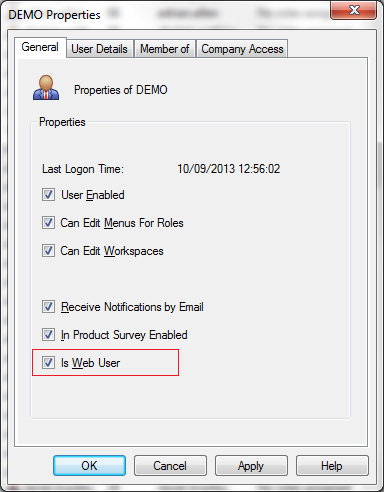
You will see an error message when connecting to the Self Service web app if you are not a Web User.
To resolve this, make sure that the Is Web user option is selected on your User Properties in System Administration.
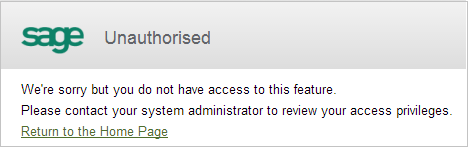
Unauthorised error
You will see an unauthorised error if you try to access a feature that has not been authorised for your role in System Administration.
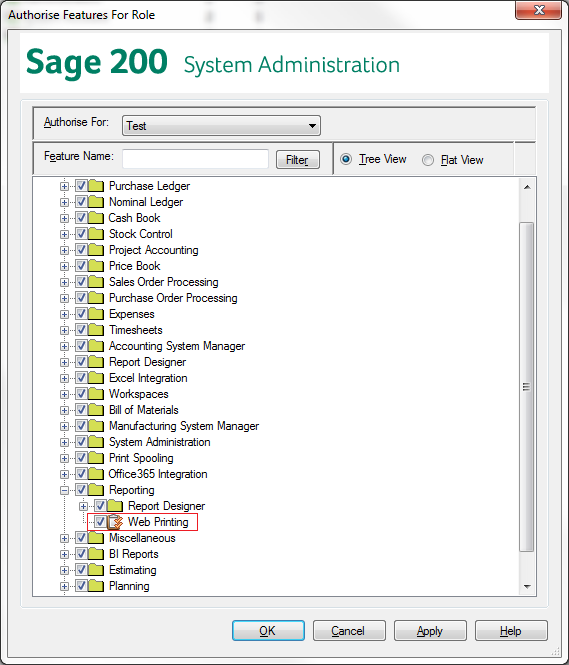
To resolve this, make sure that the feature is enabled for your role, or that you are a member of a role with the feature enabled.
For example, you will see this error if you try to print a report and your Sage 200 user account does not have the Web Printing feature enabled in System Administration.
HTTP errors
These errors generally occur when changes have been made to the configuration of Internet Information Services (IIS).
For more information, contact your system administrator.
Links errors
The shortcut links to files and folders use Microsoft Windows Technology.
If the links do not work, this may be because:
-
You are using a tablet device.
-
You are using an Apple device.
-
You are using a PC that uses Microsoft but the PC is not on the domain.
-
The link points to a file that does not exist.
-
The link points to a file that you do not have permissions for.
Internal Server Error after a restart
After restarting the Sage 200 server, you see either of these error messages:
-
"Internal Server Error" when using workspaces in the Self Service web app.
-
"We're sorry, there has been a problem" message when using Summary pages in the Self Service web app.
These errors can occur if your SQL Server (MSSQLSERVER) service is not set to start automatically, as the SQL service does not start again after your server restarts.
To resolve this, see the article Sage 200 - "Internal Server Error" using workspaces in Self Service after restart (opens in a new tab).
WTE error messages
The following error messages relate to the WTE workspaces in the Self Service web app.
Configuration error
You will see a Configuration error if your Sage 200 user account is not set up correctly for the area of the Self Service web app you are trying to use.
For example, you will see this error when you are trying to enter or authorise timesheets or expense claims and your Sage 200 user account has not been set up as a resource in Project Accounting.
See Set up the Self Service web app for timesheets and expense claims.